Collections
Collection features added in this fork. For the base collection behaviour, see the upstream docs.
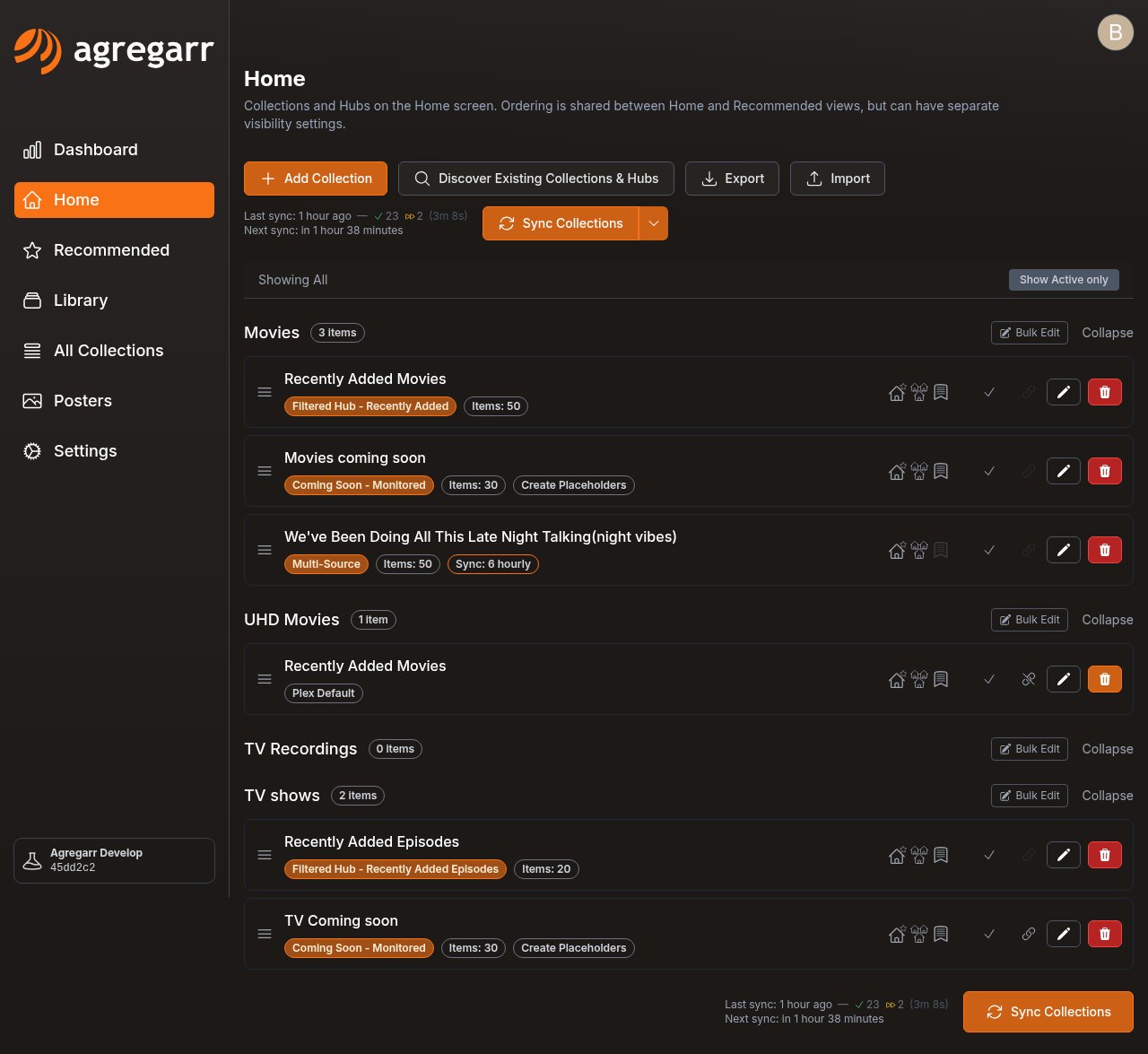
Collection Presets
Start from Preset pre-fills the new collection form with one of 12 preset configs. You'll only see it while creating a collection.
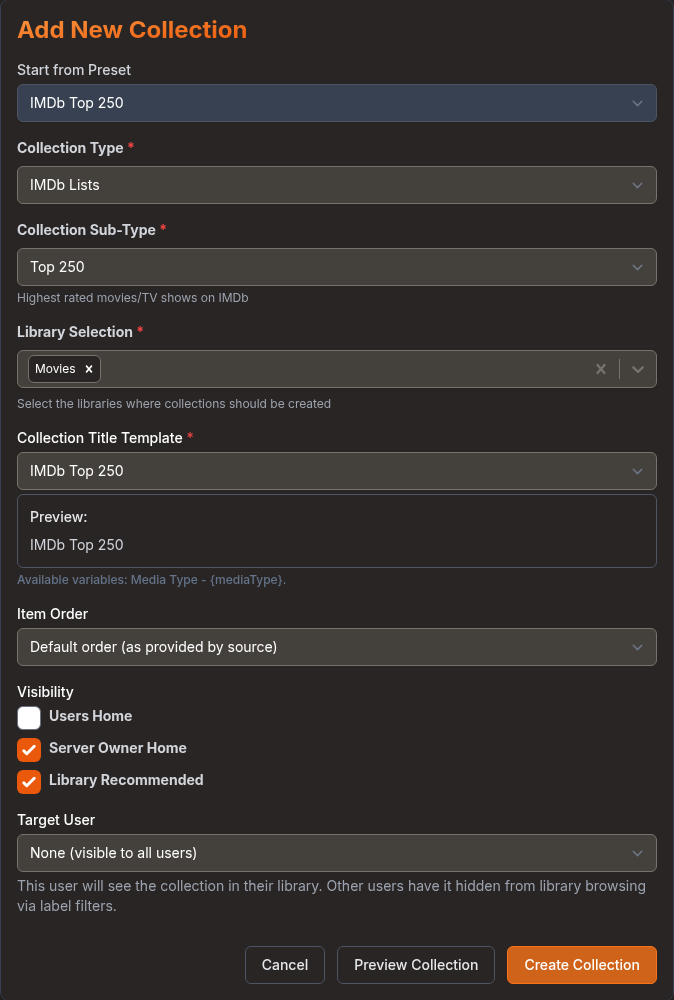
| Preset | Source | Media | Max Items |
|---|---|---|---|
| Trending Movies Today | TMDB | Movies | 20 |
| Trending TV Today | TMDB | TV | 20 |
| TMDB Top Rated Movies | TMDB | Movies | 50 |
| TMDB Top Rated TV | TMDB | TV | 50 |
| IMDb Top 250 | IMDb | Movies | 250 |
| IMDb Most Popular Movies | IMDb | Movies | 30 |
| IMDb Most Popular TV | IMDb | TV | 30 |
| Upcoming Movies | Coming Soon | Movies | 30 |
| Upcoming TV | Coming Soon | TV | 30 |
| Trakt Trending Movies | Trakt | Movies | 20 |
| Trakt Trending TV | Trakt | TV | 20 |
| Netflix Top 10 Movies | Networks | Movies | 10 |
Presets turn on Server Owner Home and Library Recommended, with Users Home left off. Coming Soon presets also turn on placeholder creation. Trakt presets stay hidden until you've configured Trakt credentials. You can edit every field after choosing a preset.
Library Essentials
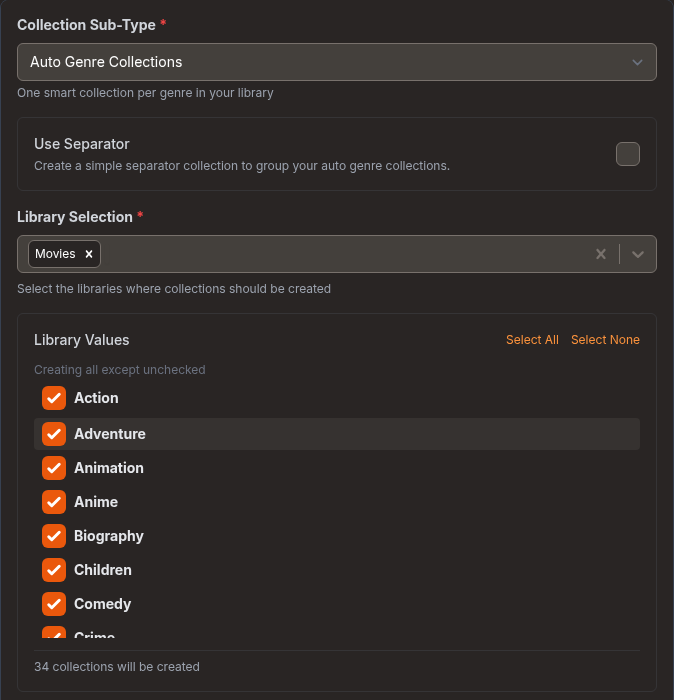
Select Plex Library, then pick an Essentials subtype. Agregarr builds smart collections from the library's metadata.
| Subtype | What it creates |
|---|---|
| Auto Genre Collections | One smart collection per genre |
| Auto Decade Collections | One per decade (2020s, 2010s, ...) |
| Auto Resolution Collections | One per quality level (4K, 1080p, ...) |
| Auto Content Rating Collections | One per content rating |
Include / Exclude mode
The Library Values panel lists every value found in that library. Everything starts ticked, and the panel reads Creating all except unchecked. You can use it in two ways:
- Exclude mode (the default): untick anything you don't want.
- Include mode: click Select None, then tick only the values you want. The panel changes to Creating only checked.
Select All switches back to exclude mode with nothing excluded. Change the library or subtype and the list starts again with everything ticked. The running count shows how many collections it'll create, and any value matching an existing Plex collection gets an Existing collection badge.
Separators
The Use Separator checkbox adds a separator collection above the group, such as "Genre Collections". It sorts directly before the collections in that group.
Visibility
Users Home, Server Owner Home and Library Recommended are off by default. The collections still appear in the Collections tab, without filling up the home screens.
Separator Collections
These are empty collections with a title card poster, useful for breaking up long collection rows.
Select Plex Library > Separator. There are three fields:
- Separator Title: shown on the poster and used as the collection name
- Posters: upload your own, or leave it blank to use the generated template
- Visibility: the standard visibility checkboxes
Label Collections
Select Plex Library > Label, then choose a library and a Plex Label. Agregarr includes only items from that library carrying the label, and refreshes the membership on every sync. Each config supports one label.
Per-User Collection Targeting
The Target User dropdown in the collection config lists every Plex user. Once you select one, label filters hide the collection from other users while they're browsing the library.
Default: "None (visible to all users)."
The server owner always sees every collection
Targeting works by adding label filters to the other users' sharing restrictions in Plex. Those restrictions only exist for accounts the server is shared with. The server owner's own account doesn't have any. That's how Plex works, and Agregarr can't change it: if you watch as the owner, you'll see every targeted collection, whoever it was meant for.
The workaround is to not watch as the owner. Add a managed user to your Plex Home, or use a second Plex account the server is shared with, and do your watching there. That user gets filtered like everyone else, so it only sees its own collections.
Setting a Target User while Users Home is on shows a warning about Home visibility.
Target User works with standard collections, multi-source collections, and the Recently Added and Recently Released hubs. It doesn't affect Auto Franchise, Auto Director, Auto Actor, Library Essentials, separator, or Overseerr collections. Those manage their own labels.
Sort Title
The Sort Title field controls the collection's position in Plex. It appears when you edit a collection from the Library, Home, or Recommended pages. You won't see it from All Collections, on standalone separators, or on Recommended when the collection also appears on Home. In that last case, Home controls the order.
- A padded prefix such as
!020_puts the collection at that position. Agregarr reads the number, so promoting, demoting, and dragging still work. - Promoted collections get a sort title containing
!, a three-digit position, an underscore, and the name. For example,!001_IMDb Popular. - Clear the field to switch back to automatic positioning.
Collection Sort Format under Settings > Plex controls how a leading "The", "A", or "An" is sorted. The options are Off (sort exactly as typed), Strip (e.g. "The Accountant" → "Accountant"), and Move to End (e.g. "The Accountant" → "Accountant, The"). This changes the sort title only. The collection name stays as it is.
Filtered Hubs
Choose Filtered Plex Hub, then pick a subtype. Each subtype creates a smart collection that leaves out anything with the trailer-placeholder label, keeping placeholders out of the hub.
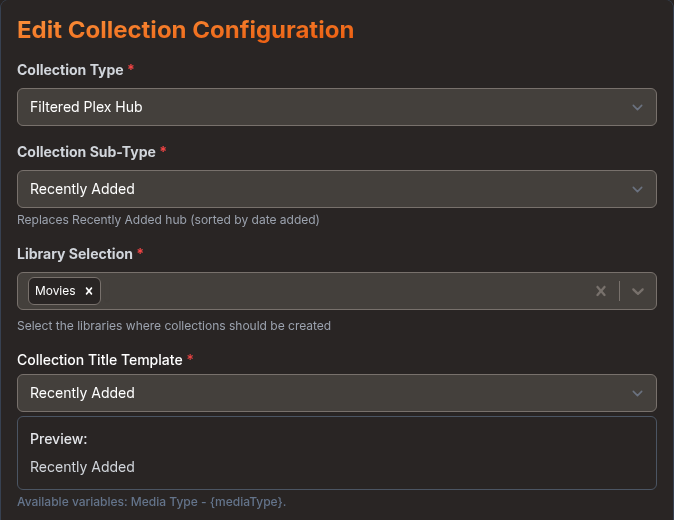
| Subtype | What it lists |
|---|---|
| Recently Added | Items by date added |
| Recently Released | Items by release date |
| Recently Added Episodes | Shows by their most recently added episode (TV libraries only) |
| Recently Added Episodes (Individual) | The episodes themselves, by date added (TV libraries only) |
| Recently Released Episodes (Individual) | The episodes themselves, by air date, newest first (TV libraries only) |
Recently Released Episodes (Individual) never includes episodes with a future air date. Both Individual hubs also leave out shows carrying the trailer-placeholder label.
The two Individual hubs don't use collection exclusions or automatic posters. Label Exclusion isn't available for Filtered Plex Hub collections.
More Sources and Options
IMDb Bottom 100
IMDb Lists includes a Bottom 100 subtype for IMDb's lowest rated movies. Movies only.
TVDB Lists
TVDB Lists is a collection source with a Custom List subtype. Paste the list URL into Custom TVDB List URL, then click Validate. You can also use it as a source in multi-source collections.
Items keep their order from the TVDB list. Movie libraries take the movies, while TV libraries take the series. If a list mixes both, you'll need one collection for each library. Anything missing from your library uses the same missing-item options as the other sources.
Random Lists
Letterboxd, Trakt, IMDb, and TMDB each have a Random Lists subtype. During a single sync, separate random-list collections won't choose the same list while unused lists are still available.
To supply your own pool or remove lists from rotation, edit the source file in the config folder: random-lists/trakt.txt, random-lists/tmdb.txt, random-lists/imdb.txt or random-lists/letterboxd.txt. Set enabled=true, then add one URL per line for the lists you want to use. Add exclude=URL lines for any lists you want kept out.
Dynamic title prefix
A prefix box appears when the title template is Dynamic Title from Random List or Dynamic Title from Active Source. Its text goes in front of the generated title. For example, a prefix containing an emoji and a list titled "Musical" produces the emoji, a space, then "Musical".
Item Order
For multi-source collections, Item Order applies to each source list before the item limit. Agregarr then orders the combined list again. Reverse order affects each source list only.
Coming Soon collections using Trakt Anticipated also get a Trakt ranking option under Item Order.
Auto Franchise
Auto Franchise Collections has two settings:
- Minimum movies in library: Agregarr doesn't create collections for franchises with fewer movies than this in your library. If one already exists, the next sync removes it. The default is 2, with a minimum of 1.
- Count only released movies: unreleased or undated TMDB entries aren't counted towards the franchise size. This is off by default.
Setting the minimum to 1 with Grab Missing Items on can send many more requests. The year and rating filters still apply.
Label Exclusion
Label Exclusion removes items carrying any listed Plex label from the collection during sync. Type a label and press Enter. Adding trailer-placeholder, for example, keeps placeholders out.
You won't see this option for Filtered Plex Hub, Auto Director, or Auto Actor collections. If the labels exclude every item, Agregarr empties the existing Plex collection.
Minimum IMDb votes
Under Grab Missing Items, Minimum IMDb votes appears beside Minimum IMDb rating. It defaults to 0, meaning there's no limit. Once set, items without IMDb vote data are skipped. Placeholder filters don't include this field.
Smart Collection Sort
Tick Create Smart Collection to make a smart collection for the viewing user. Filter to Unwatched Items Only and Smart Collection Sort Order then appear. The unwatched filter is a separate checkbox, on by default.
There are 31 sort options, including Last Episode Added (Newest First), which uses each show's newest Plex episode.
New smart collections use Release Date (Newest First) by default.
Coming Soon
Root folder filter
Monitored in Radarr/Sonarr collections can filter on the root folder path under Monitored Source Settings:
- Radarr Root Folder (Movies) and Sonarr Root Folder (TV Shows) restrict the collection to items under a specific root.
- Both start at All Root Folders. The available options come from the selected server.
This is handy when one Radarr or Sonarr server feeds several Plex libraries.
The same section also has server selection when you've configured two or more servers. Filter by Tags appears when the server has tags, with Tag Filter Mode set to include or exclude.
The Monitored in Radarr/Sonarr subtype is described as "Unreleased monitored movies, and shows with an upcoming season premiere".
Mid-season episodes
Include mid-season episodes (TV) is available on Monitored collections. It includes shows whose next episode falls inside the Days Ahead window, rather than limiting the collection to season premieres. The show must already exist in Plex, and Agregarr won't create a placeholder for it. This is off by default.
Skip estimated release dates
Under Placeholder Creation, Coming Soon and Multiple Sources collections include Skip items with an estimated release date. This leaves out movies that only have a cinema date, where the current date is estimated as the cinema release plus 90 days until TMDB adds a digital or physical release. It's off by default.
Collection Ownership
Agregarr marks collections it manages with a Plex label beginning with Agregarr. If a Plex collection doesn't have one of those labels, Agregarr doesn't treat it as its own. It appears as Pre-Existing after Discover Existing Collections & Hubs.
To stop Agregarr ordering, applying visibility to, or changing sort titles on collections created by other tools, add their Plex labels under Settings > General > Exclude from Ordering (Plex Label). The field accepts a comma-separated list. A collection is excluded when it has an exact matching label, or a label that starts with the listed value followed by an underscore. Matching isn't case-sensitive.
Export / Import
Use Export on a collection page to choose collections and save them to a JSON file. Import loads that file into the library you choose, with per-source selection for multi-source collections. See Collection Export/Import.