Episode Scanning
Episode scanning reads a show's episode files and rolls the values up. Show and season posters can then show resolution, HDR, Dolby Vision, HDR10+, and Atmos badges that match the files you actually have.
Turn it on
- Go to Posters > Poster Overlays > Library Configuration.
- Click Configure on a show library.
- Turn on Use episode files for quality badges.
- Click Save Configuration.
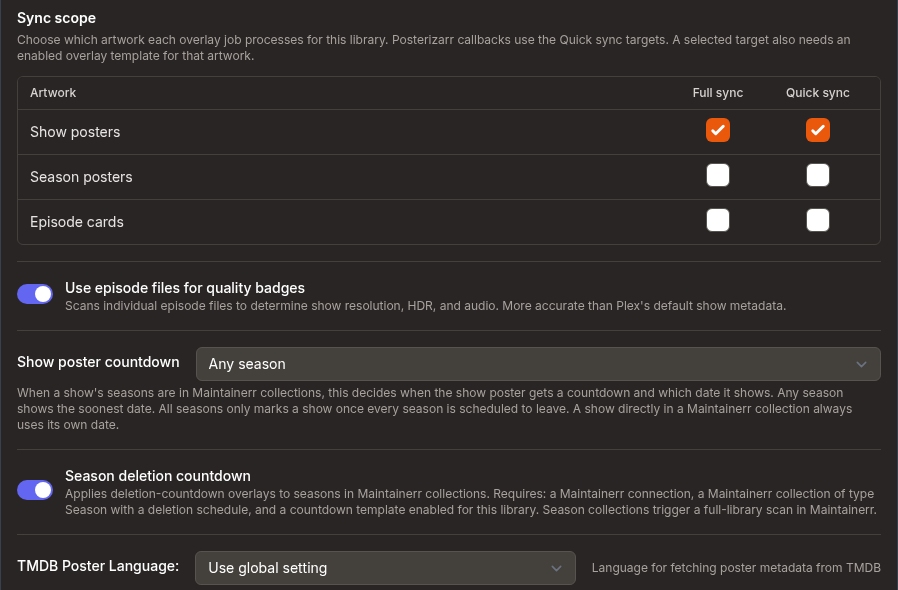
The toggle only shows up for show libraries. It's off by default.
Scanning runs during the library's full overlay sync. Quick syncs and collection-driven overlay runs don't scan Plex. They use the results from the last full sync.
What it changes
With the toggle on, show and season posters use the rolled-up values in the usual fields. That means Resolution, HDR, Dolby Vision, Dolby Vision Profile, HDR10+, Video Codec, Audio Codec, Audio Profile, Audio Channels and Bit Depth describe the episodes. Presets such as 4K Resolution, HDR10, Dolby Vision and Resolution already use these fields, so they'll follow the roll-up without any changes.
Shows also get extra fields in the Episode Media group, including 4K Episode %, HDR Episode Count and DV Episode %. Media Source (aggregated/show) shows whether the poster used the roll-up (aggregated) or Plex's own show details (show). Raw fields such as Show Resolution (Raw) and Show HDR (Raw) keep Plex's show-level values.
Days Since Last Episode Added and Last Episode Added Date come from the same scan. See Overlay Variables.
How values are rolled up
| Value | Rule |
|---|---|
| Resolution, video codec, audio codec, audio channels, bit depth | The most common value among the episodes. For resolution, a tie goes to the higher resolution. |
| Audio Profile (Atmos, DTS:X and so on) | The most common value. A tie goes to the better format. |
| HDR, Dolby Vision, HDR10+ | On when at least half of the episodes have it. |
| Dolby Vision Profile | The most common profile among the Dolby Vision episodes. |
| Counts and percentages | Number of episodes with 4K, HDR or Dolby Vision, and that number as a percentage of the episodes counted, rounded to a whole number. |
Shows. Season 0 (Specials) is left out of the quality roll-up. If a show only has specials, it uses those instead. Days Since Last Episode Added still counts specials.
Seasons. Each season is rolled up from its own episodes. Season posters only get these badges when season artwork is included in the library sync. Tick Season posters under Full sync (or Quick sync) in the library's Sync scope table, then use a template with Season poster selected under Artwork Targets.
Atmos and HDR10+ badges
- Atmos: the built-in Audio Codec preset only works for movies. For show and season posters, add a Mapped element to a template and set Source Field to Audio Profile. The element picks the icon that matches the rolled-up Audio Profile value.
- HDR10+: use the HDR10+ condition (in the Plex Data group) on a template.
What it costs
Every full sync reads the library's episode list from Plex. That's cheap, and it's enough to get resolution.
Stream-level detail needs extra Plex metadata requests for the episodes. Agregarr only fetches it when an enabled template needs it: any template using HDR, Dolby Vision, Dolby Vision Profile, Bit Depth, Color Transfer, HDR Episode Count, HDR Episode %, DV Episode Count or DV Episode %, or a show or season template using Audio Profile or HDR10+. A resolution-only setup doesn't make those requests.
Agregarr fetches details for episodes that are new, changed, or don't have saved results yet, then caches them. Saved results older than 7 days are ignored and fetched again. The first sync after adding one of those fields to a template will be the slowest.
Limits
- Test Specific Media doesn't run the episode scan, so the Episode Media fields are empty there. Check them after a full sync.
- A show that's in Plex but has no scanned episodes keeps Plex's own details.