Color Scale
A Tile element can change its fill colour based on a number, such as a rating. Low ratings show one colour, high ratings show another, and the values between them are blended. A rating badge can fade from red to green, for example.
For tile basics and templates in general, see the upstream docs.
Turn it on
- Open an overlay template in the editor (Posters > Poster Overlays > Overlay Templates).
- Add a Tile element, or select one.
- Tick Color Scale in the element properties.
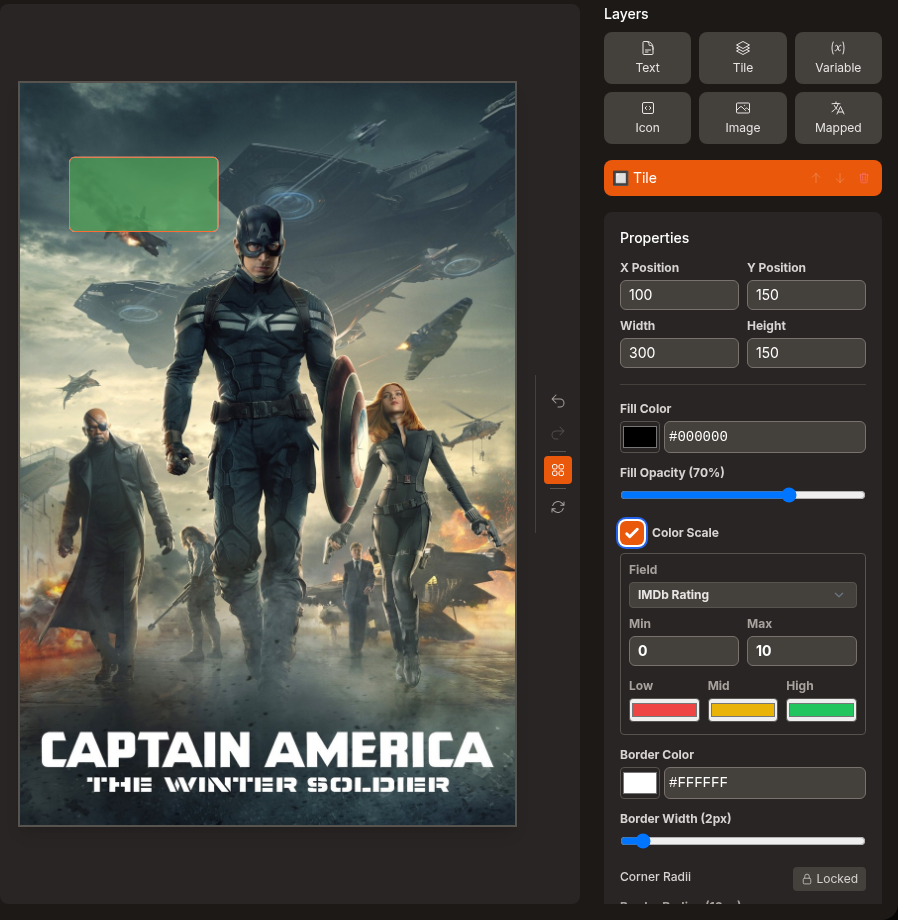
The default scale uses IMDb Rating from 0 to 10, with red at the low end and green at the high end. Untick it and the scale is removed, so the tile goes back to its Fill Color.
The editor preview uses the sample item you're previewing to colour the tile.
Settings
| Setting | What it does |
|---|---|
| Field | The number that drives the colour. IMDb Rating and TMDB Rating are the ones that colour a tile. |
| Min | The value that gets the Low colour. |
| Max | The value that gets the High colour. |
| Low | Colour at Min and below. |
| Mid | Optional colour halfway between Min and Max. |
| High | Colour at Max and above. |
RT Critic Score and RT Audience Score are in the field list too.
How a value becomes a colour
The value sits somewhere between Min and Max. Anything below Min is treated as Min, while anything above Max is treated as Max.
- Two colours. The tile blends directly from Low to High. A value halfway between Min and Max gets the colour halfway between them.
- Three colours. Pick a colour with the Mid swatch to add it to the scale. The swatch starts out yellow, but that yellow isn't used until you pick a colour. The first half of the range blends from Low to Mid. The second half blends from Mid to High. A value exactly halfway gets the Mid colour.
Example: Min 3, Max 8, Low red, Mid yellow, High green. Ratings of 3 or less are red, 5.5 is yellow, and 8 or more is green.
To go back to two colours, untick Color Scale and tick it again. This resets the scale.
If the item doesn't have a value for the selected field, such as an unrated title, the tile falls back to its Fill Color. Fill Opacity still applies on top of the scale colour.
Colour text box
The Fill Color, Border Color and Text Color swatches in the overlay editor have a text box beside them. So do the colour swatches in the collection poster editor. Type a colour in any of these forms:
#rrggbb#rrggbbaargb(r, g, b)rgba(r, g, b, a)
The colour applies as soon as the text is valid. If you leave the box with an invalid colour, it goes back to the last one it accepted.
The Low, Mid and High swatches in a Color Scale are plain colour pickers. They don't have a text box.