Overlay Conditions
Show/hide rules run at render time. There are two flavours: application conditions on overlay templates decide whether a template applies to an item, while element conditions on poster templates decide whether an element appears for a collection. No condition means it always applies.
Overlay templates
In the overlay template editor, find Application Condition and click Edit Conditions. This opens the Edit Application Conditions window. Tick the Always apply (no condition) box to add rules. Its label changes to Only apply when: and the rule builder appears. Untick it to go back to always applying.
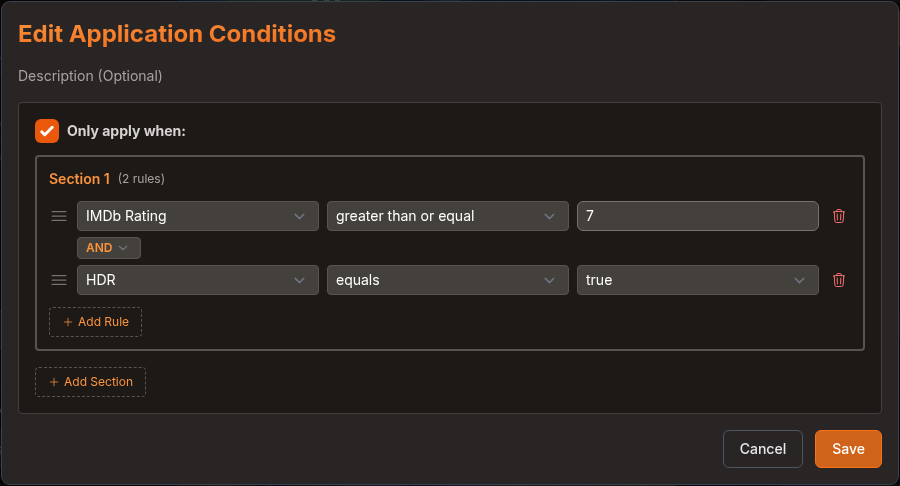
Rules are split into sections. Add Rule adds another rule to the current section. Add Section creates a new section. Drag a rule by its handle to reorder it. Rules within a section use AND or OR between each pair, with AND as the default. Sections use AND or OR as well, but default to OR.
Each rule has a field, operator, and value. The dropdown groups fields like this:
| Group | Examples |
|---|---|
| TMDB Data | Title, Year, Genre, Network (TV), Streaming Provider, TMDB Status (TV) |
| Plex Data | Resolution, HDR, HDR10+, Dolby Vision, Audio Format, Audio Profile, Edition, File Path, Days Since Added |
| Ratings | IMDb Rating, RT Critics Score, Is IMDb Top 250, Plex User Rating |
| Collections | Collection (membership in an Agregarr or Plex collection) |
| Status | Media Type (movie/show), Days Until Release, Release Date Is Estimated, Downloaded, Is Monitored, Missing Episode Count (TV), Radarr Tags, Plex Label, Days Until Maintainerr Action |
| Episode Media | 4K Episode %, HDR Episode Count, Days Since Last Episode Added, Show Resolution (Raw) |
The Status group also contains the movie release date fields: Theatrical Release Date (Movies), Digital Release Date (Movies), Physical Release Date (Movies), the matching Days Since ... Release fields, Days Since Home Release and Release Date Source (digital/physical/estimate). Days-since values go negative before the date. Overlay Variables lists what each field contains.
Operators
Available operators are equals, not equals, greater than, greater than or equal, less than, less than or equal, contains, does not contain, regex, begins with, ends with, in and exists. Each field only shows the operators it supports:
- Greater-than and less-than operators only appear on numeric fields. Some fields that look numeric, including Total Seasons (TV), Seasons in Plex (TV) and the counts and percentages in the Episode Media group, don't support them yet. Use in with the number instead, for example
5. - Yes/no fields such as HDR and Downloaded use equals or not equals with a true / false value.
- Collection and Plex Label support equals and not equals.
Text matching ignores case. With in, enter a comma-separated list such as 4k, 1080. Spaces around the items don't matter. If a value contains a comma, in can't match it.
A rule fails when the item has no value for that field, apart from a few exceptions. not equals and does not contain match an absent field, while exists matches when set to false.
Example, a NEW banner shown only on recent movies:
Media Type (movie/show) equals movie
AND Days Since Release (incl. release day) less than or equal 14
Testing: On the Overlay Templates tab, Test Specific Media runs the conditions against a real library item. Under Condition Evaluation:, each rule shows whether it matched and includes the item's value as (actual: value). A missing field appears as (actual: missing). This test doesn't fill in the Episode Media fields, so you'll need a full sync to check those. See Episode Scanning.
Poster template elements
Each element in the poster template editor has a Show conditionally checkbox. Rules use AND. Click Add rule to add more.
| Field | Values |
|---|---|
| Collection Type | source type, such as plex, imdb, letterboxd |
| Subtype | e.g. genre |
| Media Type | movie / show |
| Name | collection name |
| Item Count | number of items in the collection |
Available operators are = / ≠ / contains. Item Count also supports > ≥ < ≤.
For example, show item-count text only on large collections with Item Count ≥ 10. For a movie-only badge, use Media Type = movie.
Preview: Conditions update live on the editor canvas after you choose a preview collection. Without a preview collection, every element shows.